In the previous post, I wrote about how uploading files allows Salesy to draft intelligent responses. To recap, uploading files allows Salesy to draft replies that are factual and also allows it act on instructions when reaching specific stages of the sales journey such as presenting a proposal. Once files have been uploaded, Salesy begins its work by looking for sales lead in incoming emails. In this post, we will look at what happens once a reply has been drafted.
Recent Activity
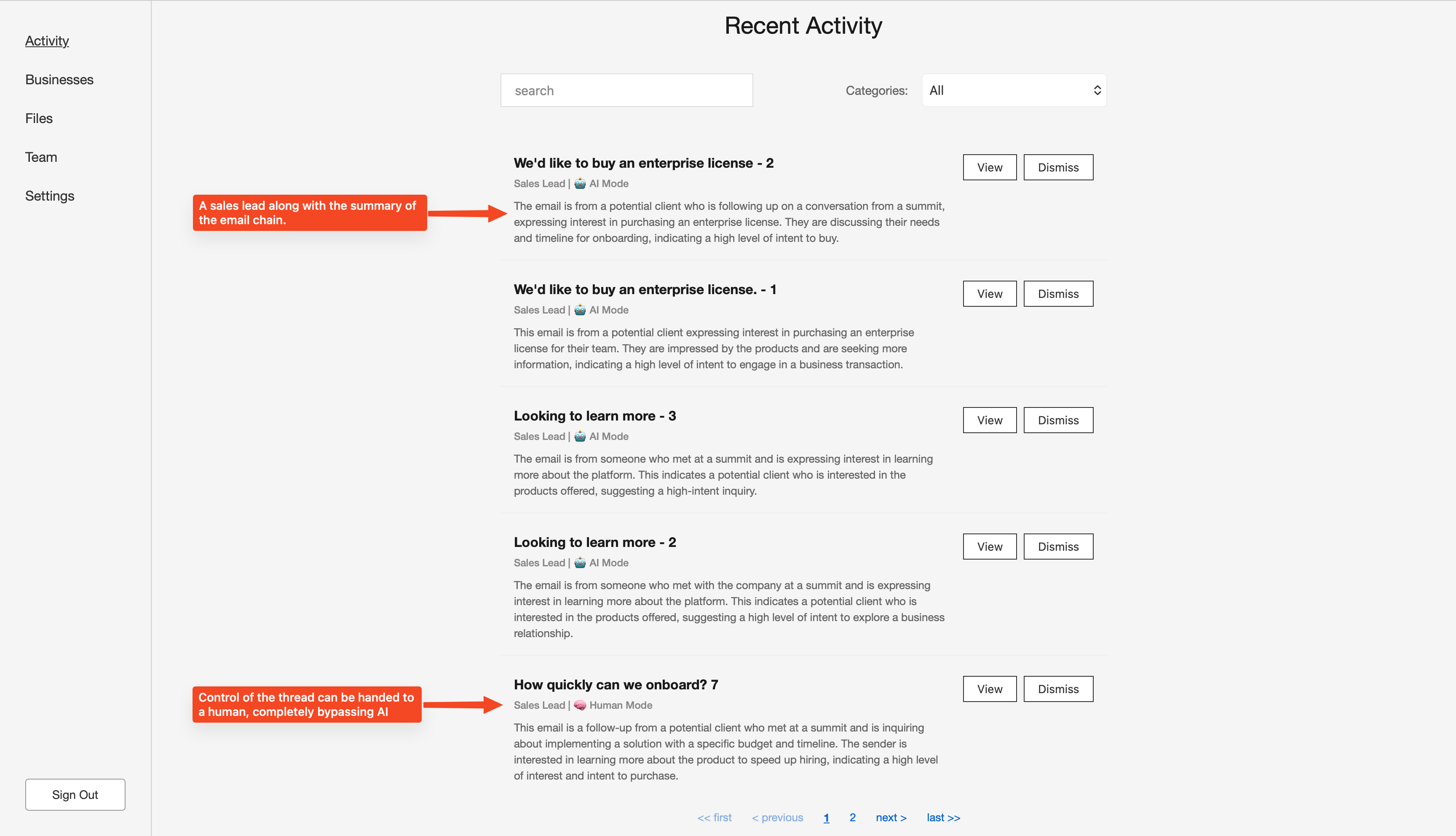
The “Activity” tab shows a list of sales leads that Salesy has identified. Each item in the list shows the title of the email, its label such as “Sales Lead”, whether the email chain is handled by AI or by a human, and a summary of the email. The user then has the option to view the response drafted, along with more details, or to dismiss this item altogether.
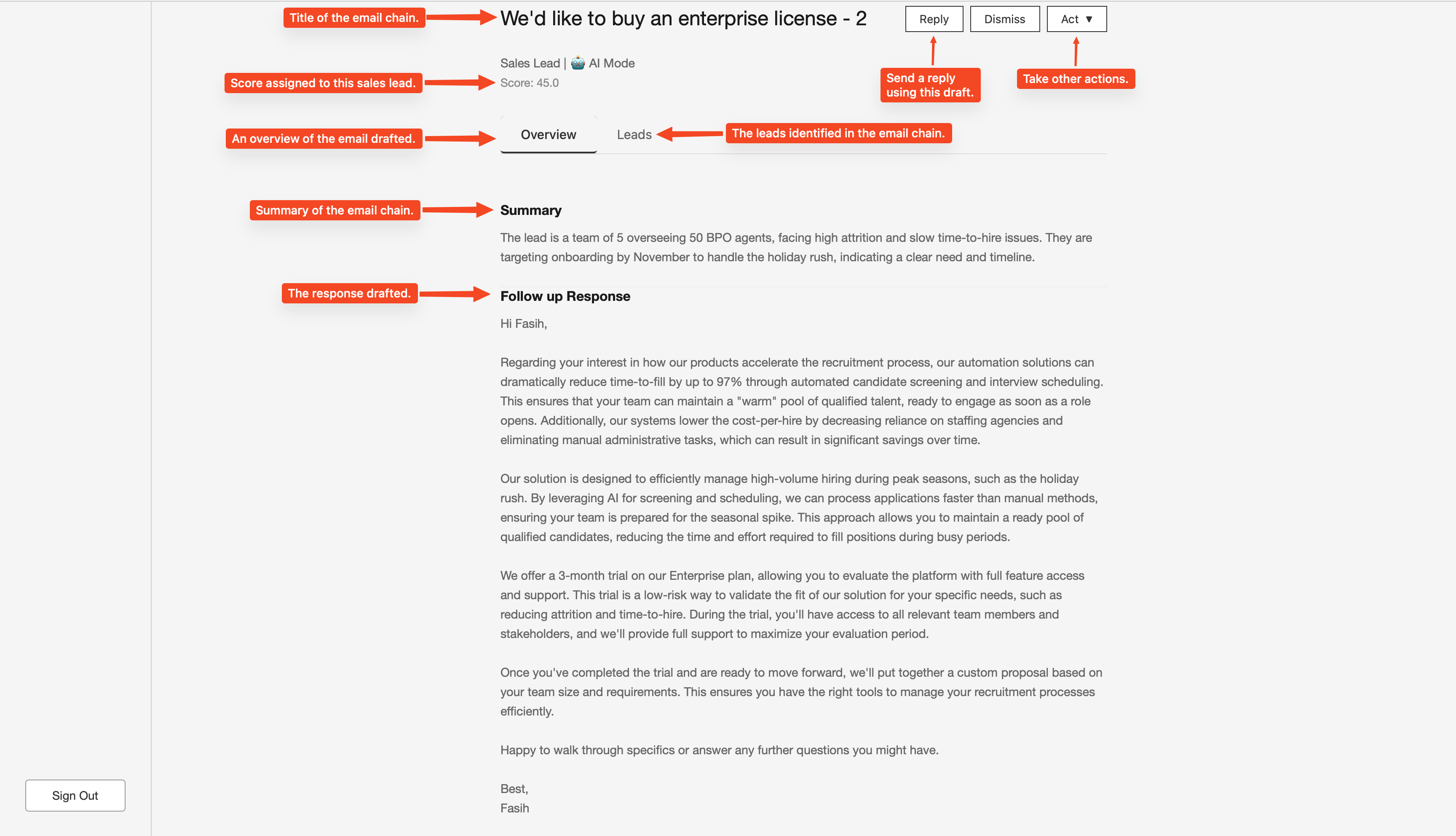
Viewing the details of the draft response shows a plethora of information. Each sales lead is assigned a score depending on the signals present in the email chain such as the urgency of the prospect, an explicit mention of their budget, presence of key stakeholders, and so on.
Most of the information lives in the “Overview” tab. The first piece of information is the summary of the email chain. This allows the user to stay up to speed with what’s happening inthe conversation even when the chain spans multiple emails. The follow up response is the actual reply that has been drafted by Salesy. This response leverages the information from the files that have been uploaded into Salesy.
The “Leads” tab captures all the leads present in the email chain along with their contact information and their designation.
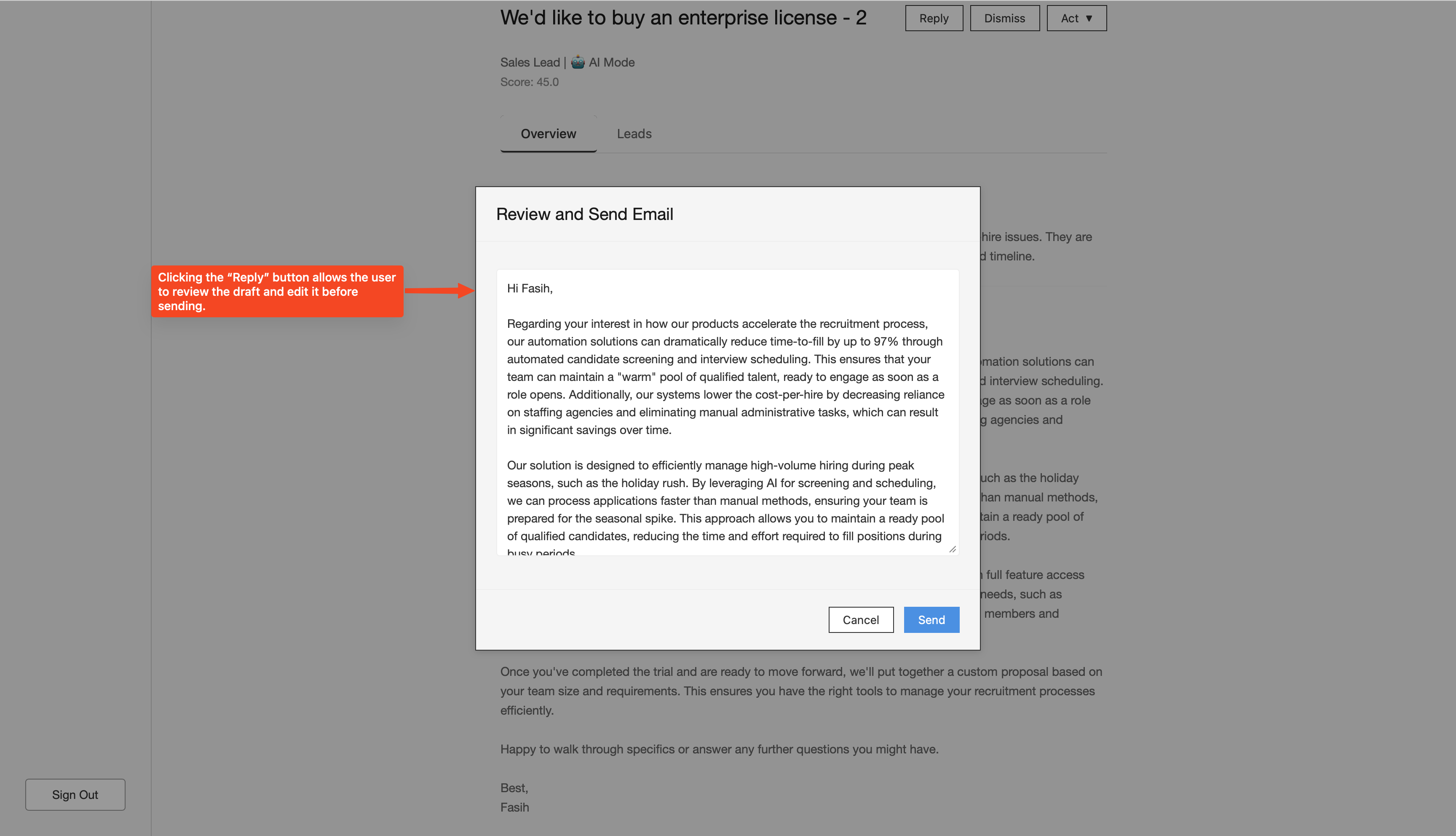
Clicking the “Reply” button presents a modal to the user where they can edit the draft before sending it to the prospect.
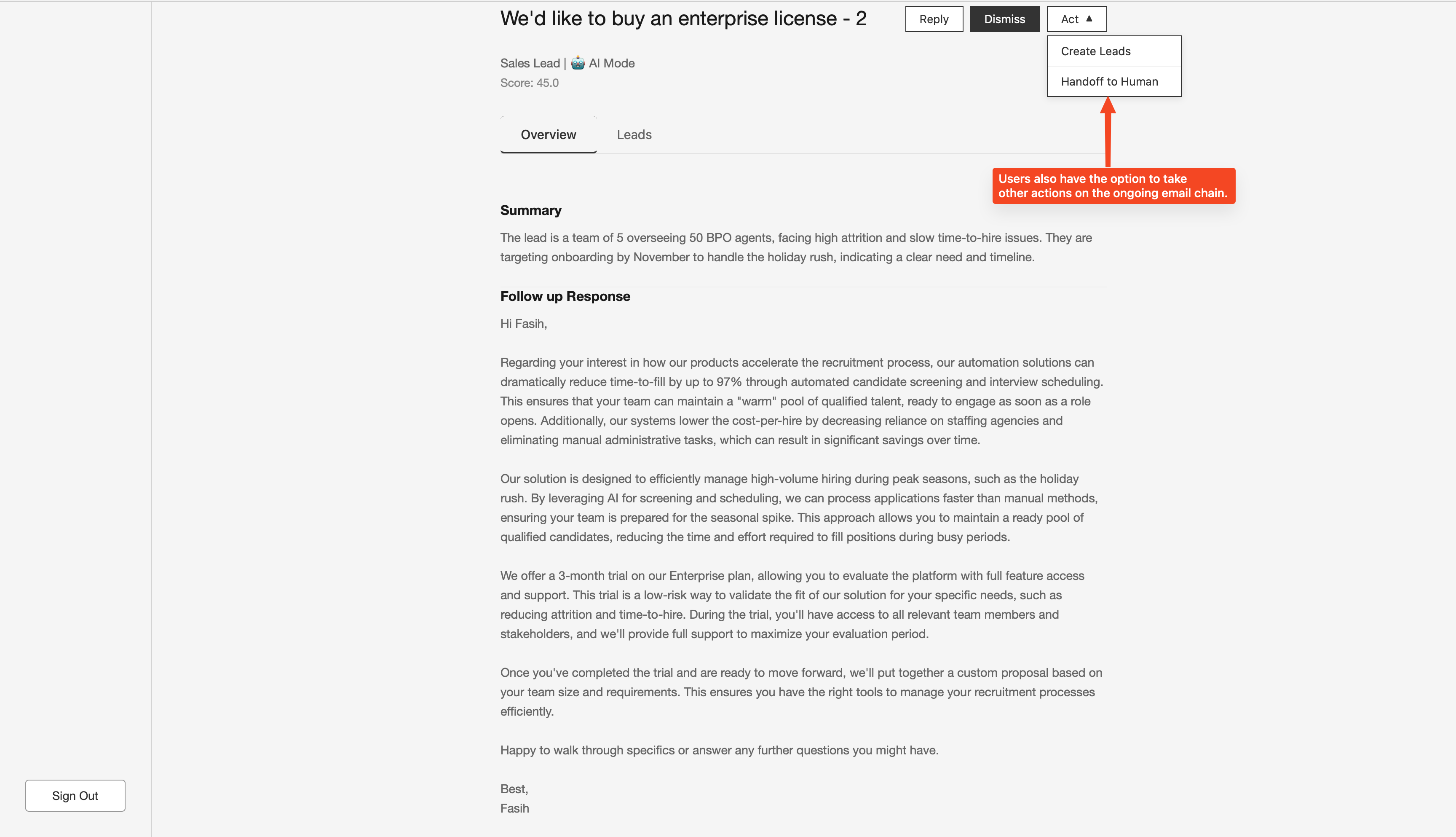
The users also have the option to take other actions on the email. They can create leads directly in the CRM that has been connected to the system. Or, they can detach the AI from the email chain by handing off the control to themselves. In this case, the AI will no longer draft responses to emails.
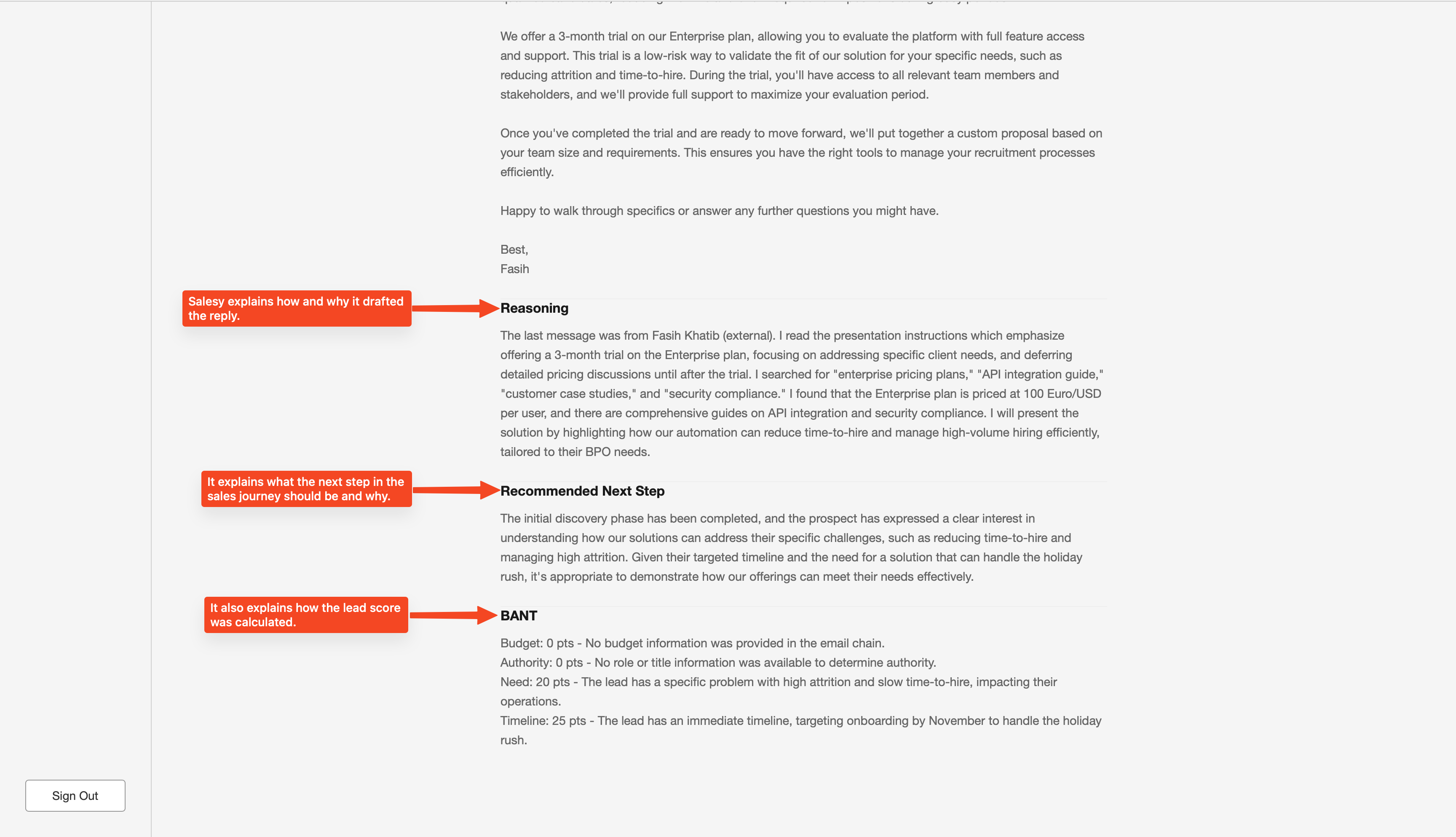
Salesy always explains why it did what it did. The “Overview” tab contains this information. It explains how the response was drafted such as what phrases were searched in the database to retrieve relevant chunks, what instruction file was read, etc. It also explains what the recommended next step in the sales journey should be and why. In this case, it says that initial greetings and requirements gathering have been completed and thus the next step should be to demonstrate the product offering. Finally, it explains how it calculated the lead score using the BANT framework; BANT stands for Budget, Authority, Need, and Timeline.
Conclusion
That’s it. That’s how Salesy drafts intelligent replies to incoming emails using files that it has been provided. Once it drafts a reply, it waits for the user to review it, while explaining how it drafted the reply. Finally, it allows users to take other actions such as sending the leads to a CRM.