In the previous post, I wrote about how a user can connect their Gmail inbox to Salesy. Connecting the inbox gives Salesy access to read email and guide the prospect through the sales journey. To guide the prospect Salesy needs information such as instructions on what to do during specific stages of journey, what questions to ask, and what information to present to the user. All of this information comes from files that the user uploads. In this post we’ll look at how Salesy uses files to do its work.
Uploading Files
The very first time the user is prompted to upload files is when Salesy performs the initial sync of the Gmail inbox. The prompt informs the user that before the AI can perform any action on their inbox, it needs a set of files that it can use to inform itself on how to guide the user through the sales journey.
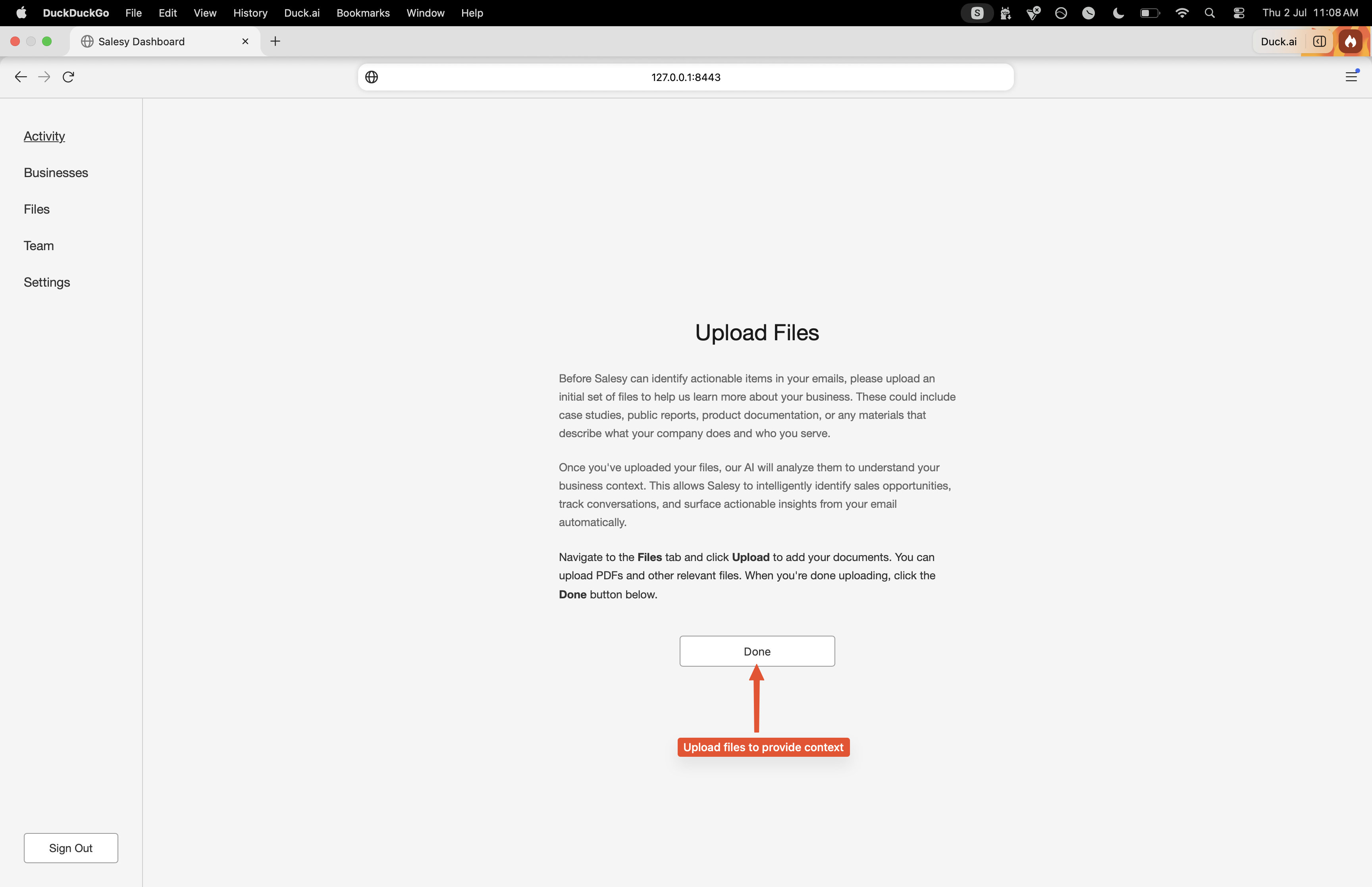
There is a dedicated tab, called the “Files” tab present on the left side of the screen, which the user can use to upload files. It presents the user with a list of files they’ve uploaded and an “Upload” button to upload new files. Initially, the list of files is empty. Salesy provides the user with the option to completely customize the sales journey. For example, it allows the user to provide instructions on what to do when presenting a proposal to the prospect. This allows every sales executive to add their personal touch to the journey. By the same token, it also allows them to upload files that are common across the organization such as questions to ask when gathering requirements from the prospect.
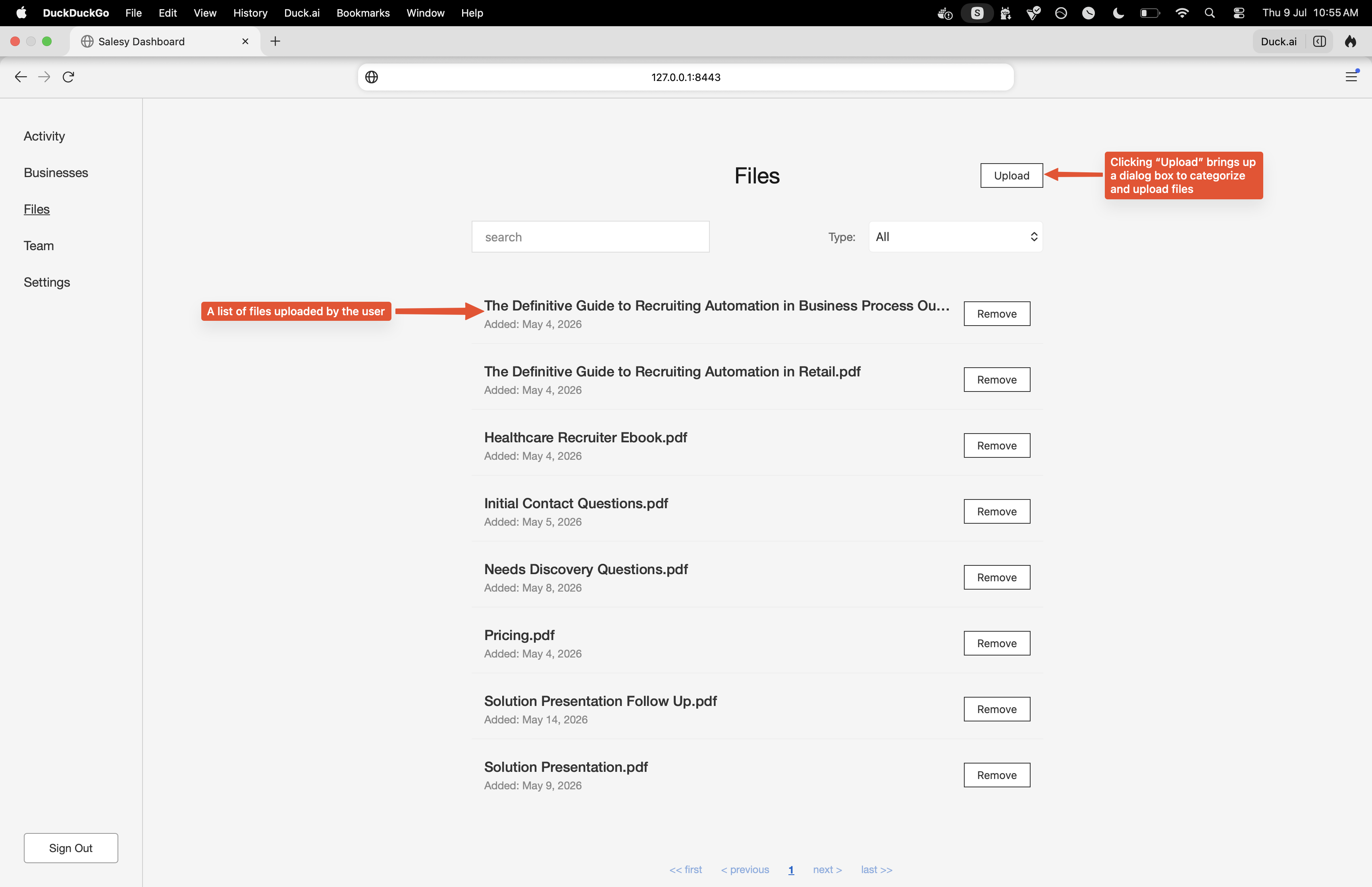
The screenshot below shows the tab with a few files uploaded. The first three contain general information about the product, The next two contain a list of questions to ask at various stages of the journey, then there’s the file with pricing information, and the last two provide instructions on what to do when presenting the solution and waiting for the prospect to move forward.
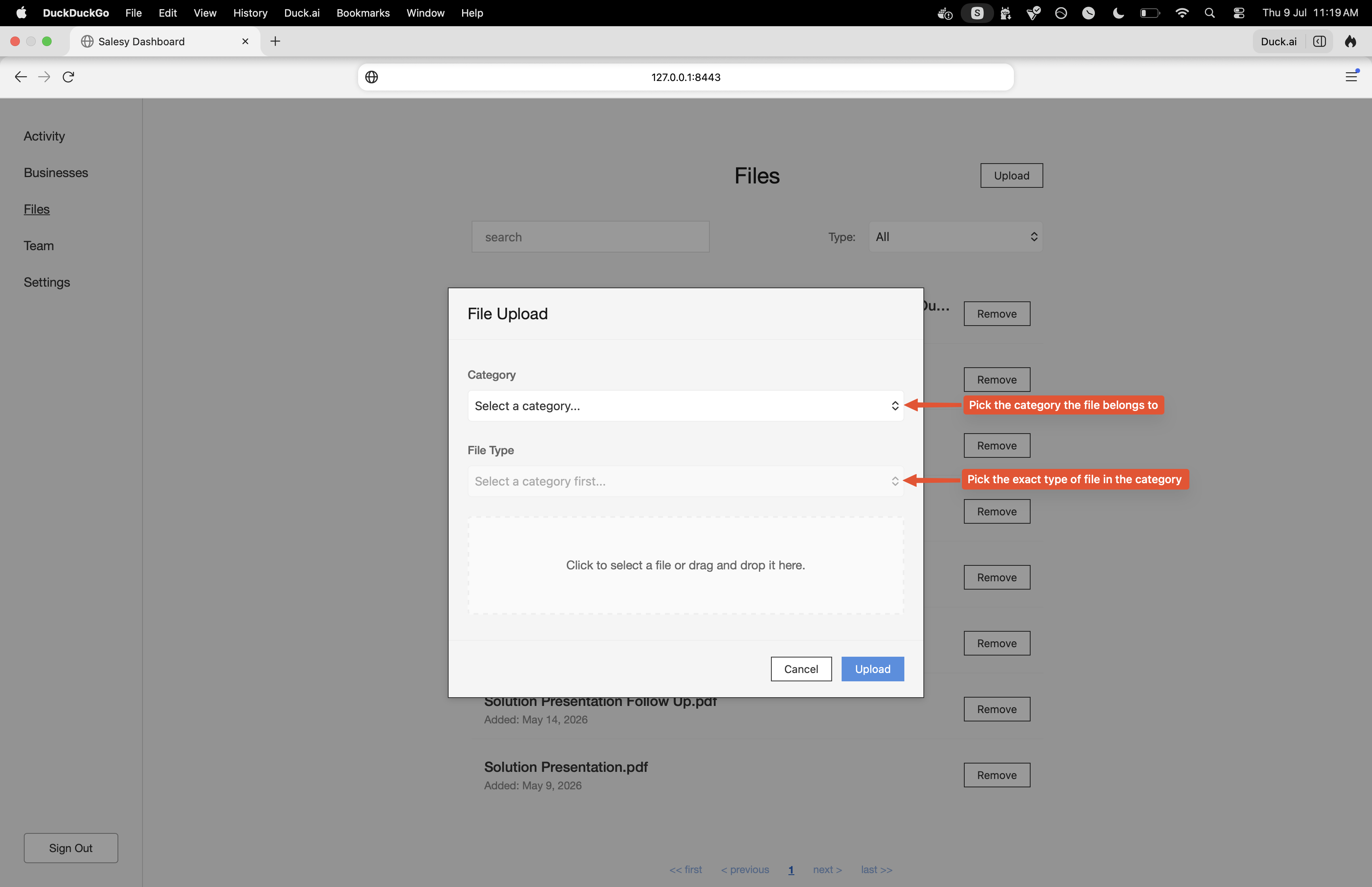
Clicking the “Upload” button brings up the file upload dialog box. It allows the user to categorize each file by mapping them to various stages of the journey. For example, if it’s a questionnaire file, then is it for gathering requirements or gauging the prospect’s satisfaction?
Once the file is uploaded, the system decides whether to convert its contents into chunks or not. For example, questionnaire files are not chunked whereas files which contain information about the company are chunked. This allows Salesy to be intelligent about how to interpret the contents of the file.
Example - Needs Dicovery Questions
The following shows the contents of the file which contains questions that gather the requirements from the prospect.
What challenges are you experiencing with your current solution (or process), and how is it impacting your team or business?
If this problem isn’t solved, what does that cost you—in terms of time, revenue, customer satisfaction, or team morale?
When evaluating solutions, what matters most to you? (e.g., ease of use, integration capabilities, pricing model, support, scalability)
What’s driving the timing of this evaluation? Is there a specific deadline, event, or goal you’re working toward?
If we were having this conversation six months after implementation, what would need to happen for you to feel this was a great decision?
Example - Solution Presentation
The following shows the contents of the file which contain instructions on how to propose a solution to the prospect.
Overview
When presenting our solution to qualified prospects, offer a 3-month trial period on the
Enterprise plan to allow them to thoroughly evaluate the platform with their team.
Trial Offer Structure
Trial Details
- Duration: 3 months
- Plan Level: Enterprise plan (full feature access)
- Team Access: Include all relevant team members/stakeholders
- Support: Full support during trial period
- Goal: Allow comprehensive evaluation before commitment
Pricing Information
ALWAYS look at the thread for relevant context to calculate pricing. For example, the number of
people who’d want to use our platform. IF AND ONLY IF you find such information, come up with
a rough estimate using the instructions below.
1. ALWAYS look up our current enterprise plan pricing from our pricing documentation.
2. ALWAYS come up with an estimate of value. For example, 5 people on Enterprise plan for 3 months.
3. ALWAYS Present pricing as context only to give them a sense of value
4. Always defer detailed pricing discussion:
- “We’ll present detailed pricing and terms tailored to your specific needs after you’ve had a
chance to evaluate the platform”
- “Once you’ve completed the trial and are ready to move forward, we’ll put together a custom
proposal based on your team size and requirements”
Presentation Approach
Connect to Their Needs
- Reference specific pain points or challenges they mentioned in our previous conversations
- Explain how our specific platform features address their stated requirements
- Show how the solution fits into their workflow and processes
Trial Value Proposition
- Emphasize hands-on evaluation over sales pitch
- Position trial as low-risk way to validate fit
- Highlight that they’ll have full support to maximize the evaluation period
Conclusion
That’s it. That’s how you upload files to Salesy and help it make informed decisions on how to guide the sales process. In the next post we’ll look at what happens after the files have been uploaded and Salesy begins to draft replies.